

Step 1: Open the App
Navigate to spine.altician.com in Google Chrome (recommended).Step 2: Load Data
You have two options:- Demo mode: Click “Try with a DEMO scan” to instantly load a sample spine MRI.
- Your own files: Click the Open button or drag-and-drop a DICOM folder onto the viewport.

Step 3: Navigate the 3D Volume
Once loaded, interact with the 3D volume using your mouse:
Use the camera preset buttons (SAG, COR, AX, Lt.OBL, Rt.OBL) for standard anatomical views.

Step 4: Run AI Segmentation
- Download and install Spine Helper.
- In the right panel under Meshes, click Run.
- Wait for segmentation to complete — vertebrae, discs, and spinal canal will appear as 3D meshes.
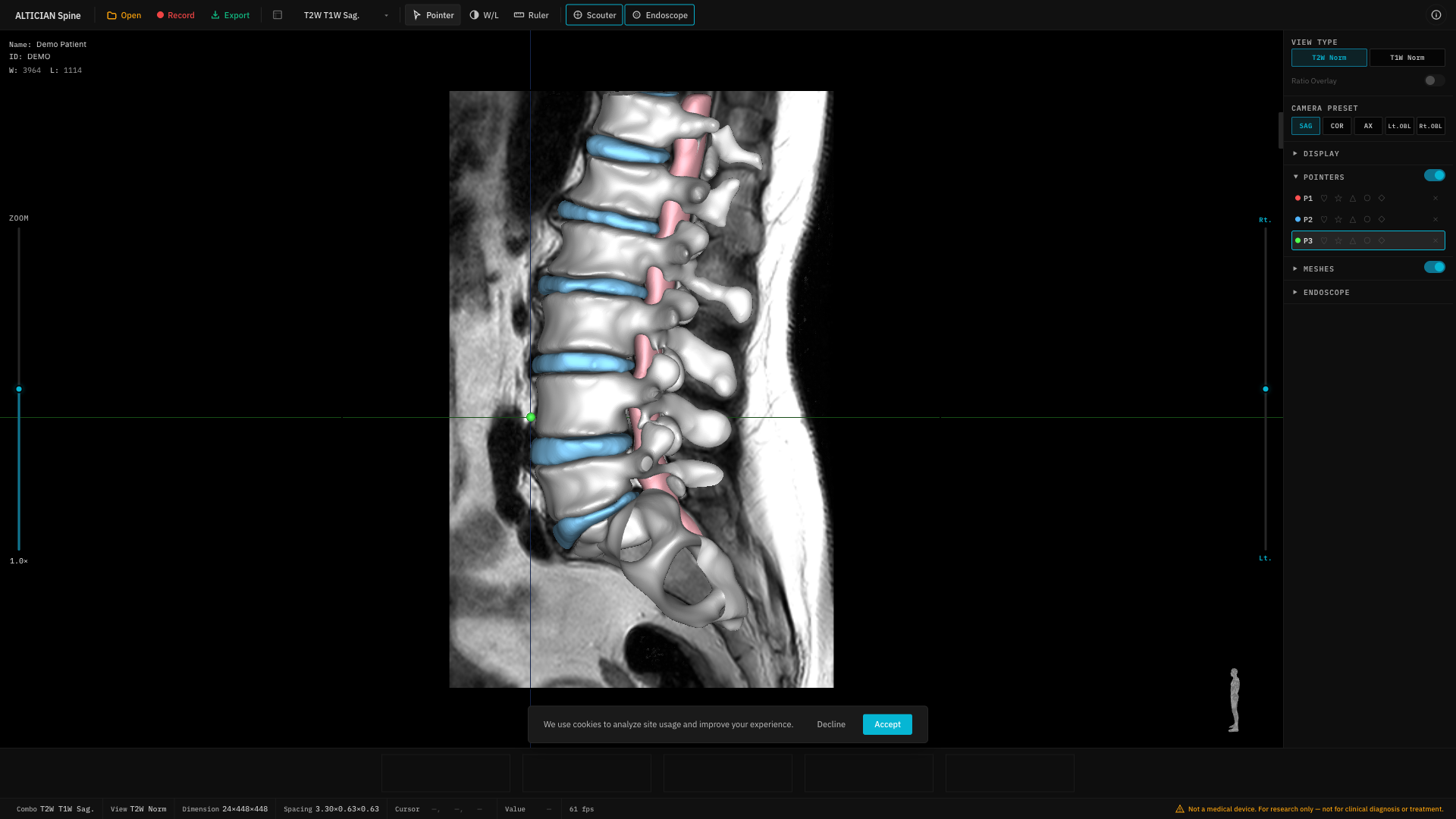
Step 5: Export
Click the Export button to save slice sequences as MP4, WebP, PNG, or JPG.Next Steps
System Requirements
Check browser and hardware compatibility.
3D Navigation
Master camera controls and presets.
Segmentation Guide
Learn about AI segmentation.
Virtual Endoscope
Explore the virtual endoscopy mode.