> ## Documentation Index
> Fetch the complete documentation index at: https://docs.spine.altician.com/llms.txt
> Use this file to discover all available pages before exploring further.
# Mesh Controls
> Toggle, style, and filter segmentation meshes
## Mesh Visibility
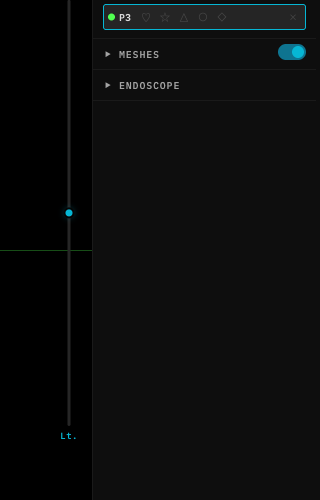
Toggle the main mesh visibility using the **eye icon** in the Meshes section header.
 ## Display Options
| Control | Description |
| ------------------- | ---------------------------------------------------------- |
| **3D Transparency** | Makes meshes semi-transparent to see the volume underneath |
| **3D Cut** | Clips meshes at the current clip plane position |
| **Mesh Opacity** | Adjusts overall mesh opacity (slider) |
## Display Options
| Control | Description |
| ------------------- | ---------------------------------------------------------- |
| **3D Transparency** | Makes meshes semi-transparent to see the volume underneath |
| **3D Cut** | Clips meshes at the current clip plane position |
| **Mesh Opacity** | Adjusts overall mesh opacity (slider) |
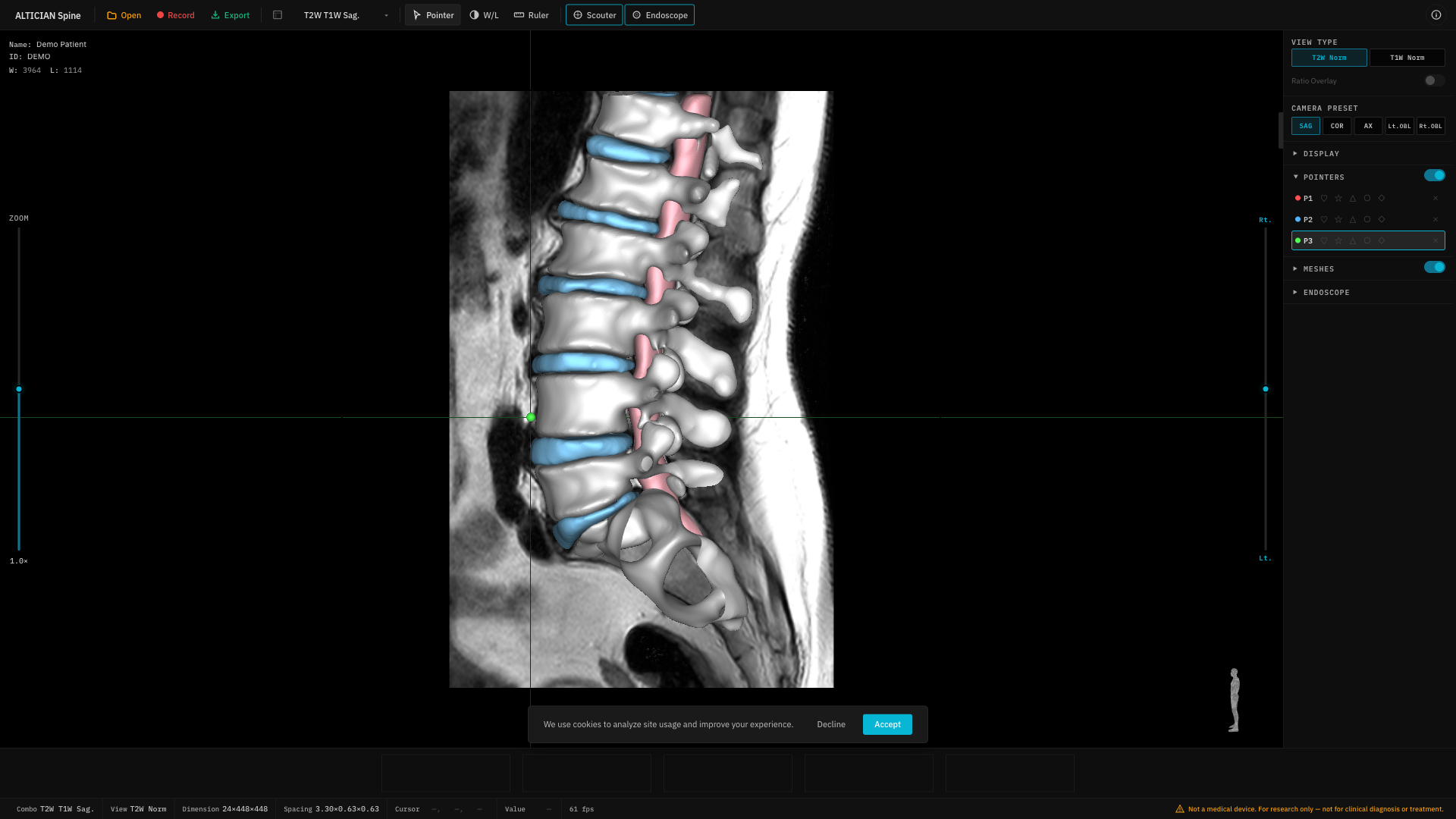 When meshes are hidden (eye icon off), the Transparency and Cut toggles are disabled (grayed out).
## Label Controls
Each segmentation label (e.g., L1, L2, Disc L2/L3) can be toggled individually:
* Click a label name to toggle its visibility.
* Use group headers (**Vertebrae**, **Discs**, **Canal**, **Other**) to toggle entire groups.
* **Show All** / **Hide All** buttons for quick batch control.
Clicking a group header while meshes are hidden will automatically show meshes first, then toggle the group.
When meshes are hidden (eye icon off), the Transparency and Cut toggles are disabled (grayed out).
## Label Controls
Each segmentation label (e.g., L1, L2, Disc L2/L3) can be toggled individually:
* Click a label name to toggle its visibility.
* Use group headers (**Vertebrae**, **Discs**, **Canal**, **Other**) to toggle entire groups.
* **Show All** / **Hide All** buttons for quick batch control.
Clicking a group header while meshes are hidden will automatically show meshes first, then toggle the group.