> ## Documentation Index
> Fetch the complete documentation index at: https://docs.spine.altician.com/llms.txt
> Use this file to discover all available pages before exploring further.
# Quick Start
> Get up and running with ALTICIAN Spine in 5 minutes
## Step 1: Open the App
Navigate to [spine.altician.com](https://spine.altician.com) in Google Chrome (recommended).
## Step 2: Load Data
You have two options:
* **Demo mode**: Click **"Try with a DEMO scan"** to instantly load a sample spine MRI.
* **Your own files**: Click the **Open** button or drag-and-drop a DICOM folder onto the viewport.
 ## Step 3: Navigate the 3D Volume
Once loaded, interact with the 3D volume using your mouse:
| Action | Mouse Control |
| ------ | ------------------ |
| Rotate | Left-click + drag |
| Pan | Right-click + drag |
| Zoom | Scroll wheel |
Use the camera preset buttons (**SAG**, **COR**, **AX**, **Lt.OBL**, **Rt.OBL**) for standard anatomical views.
## Step 3: Navigate the 3D Volume
Once loaded, interact with the 3D volume using your mouse:
| Action | Mouse Control |
| ------ | ------------------ |
| Rotate | Left-click + drag |
| Pan | Right-click + drag |
| Zoom | Scroll wheel |
Use the camera preset buttons (**SAG**, **COR**, **AX**, **Lt.OBL**, **Rt.OBL**) for standard anatomical views.
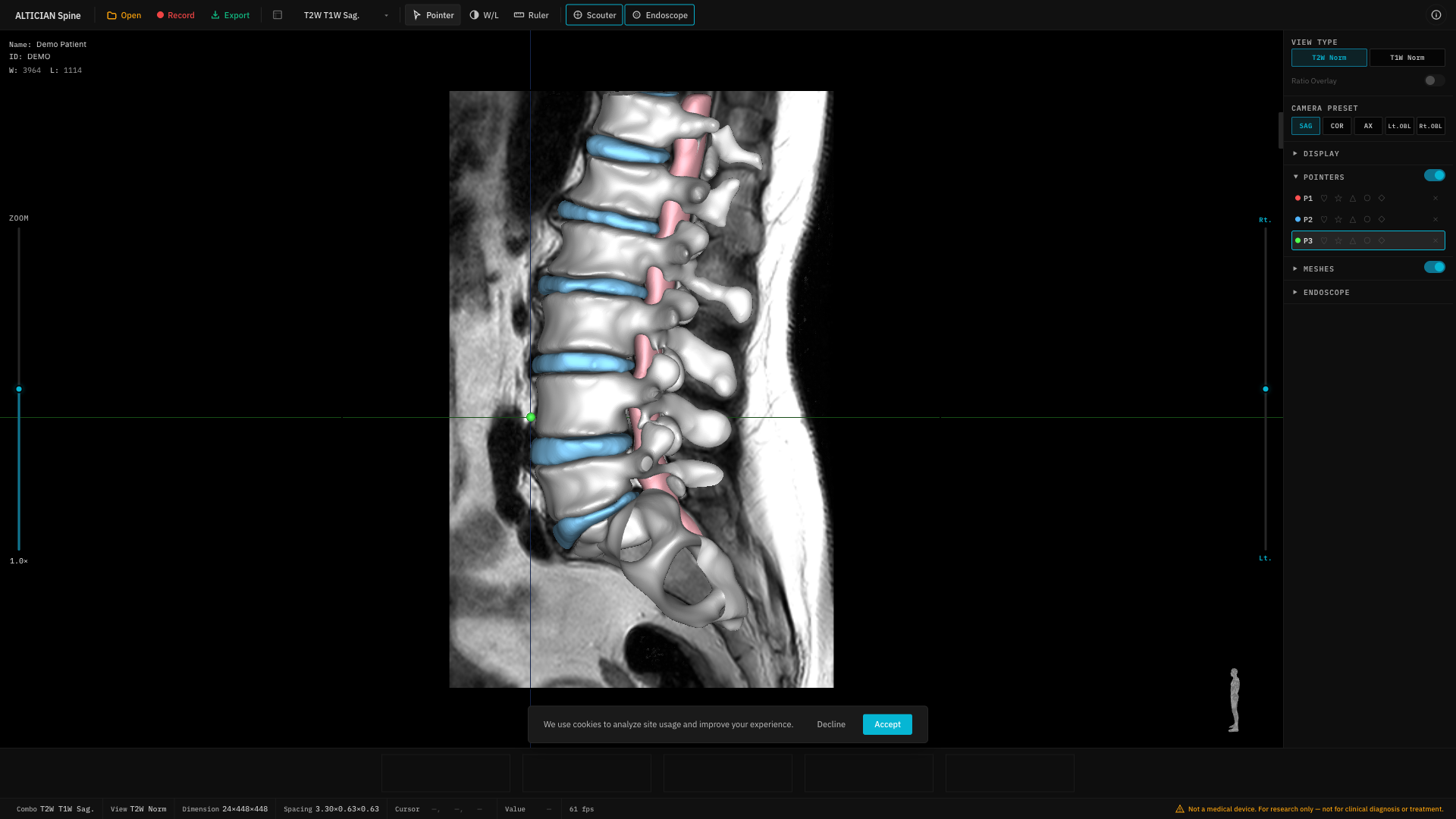
 ## Step 4: Run AI Segmentation
1. Download and install [Spine Helper](/segmentation/helper-setup).
2. In the right panel under **Meshes**, click **Run**.
3. Wait for segmentation to complete — vertebrae, discs, and spinal canal will appear as 3D meshes.
## Step 4: Run AI Segmentation
1. Download and install [Spine Helper](/segmentation/helper-setup).
2. In the right panel under **Meshes**, click **Run**.
3. Wait for segmentation to complete — vertebrae, discs, and spinal canal will appear as 3D meshes.
 ## Step 5: Export
Click the **Export** button to save slice sequences as MP4, WebP, PNG, or JPG.
## Next Steps
Check browser and hardware compatibility.
Master camera controls and presets.
Learn about AI segmentation.
Explore the virtual endoscopy mode.
## Step 5: Export
Click the **Export** button to save slice sequences as MP4, WebP, PNG, or JPG.
## Next Steps
Check browser and hardware compatibility.
Master camera controls and presets.
Learn about AI segmentation.
Explore the virtual endoscopy mode.