> ## Documentation Index
> Fetch the complete documentation index at: https://docs.spine.altician.com/llms.txt
> Use this file to discover all available pages before exploring further.
# Screen Recording
> Record your viewport as video
## Starting a Recording
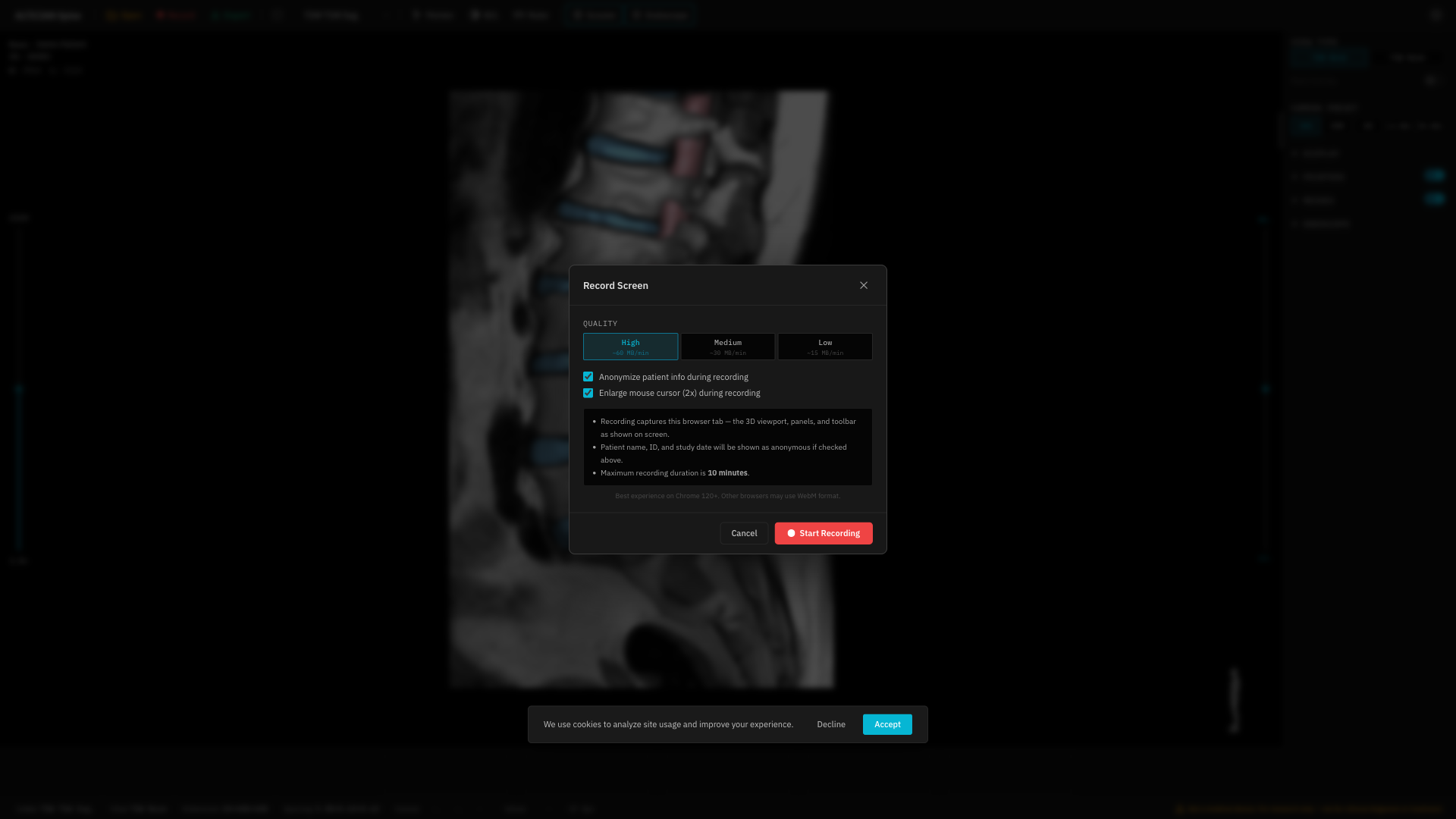
1. Click the **Record** button (red) in the toolbar.
2. In the recording modal, configure:
* **Quality**: High (\~60 MB/min), Medium (\~30 MB/min), or Low (\~15 MB/min)
* **Anonymize patient info**: Check to hide patient details in the recording
* **2x Cursor**: Check to enlarge the cursor for visibility
3. Click **Start Recording**.
4. Your browser will ask to share the tab — allow it.
 ## During Recording
* A **red border** appears around the viewport to indicate recording is active.
* The Record button shows a stop icon.
## Stopping
Stop the recording by either:
* Clicking the **Record** button again.
* Clicking **"Stop sharing"** in the browser's sharing indicator.
The recording automatically stops after **10 minutes**.
## Output
The recorded video is automatically downloaded as MP4 (if supported) or WebM.
## Constraints
* Recording is disabled while segmentation is running.
* Segmentation cannot be started while recording is active.
## During Recording
* A **red border** appears around the viewport to indicate recording is active.
* The Record button shows a stop icon.
## Stopping
Stop the recording by either:
* Clicking the **Record** button again.
* Clicking **"Stop sharing"** in the browser's sharing indicator.
The recording automatically stops after **10 minutes**.
## Output
The recorded video is automatically downloaded as MP4 (if supported) or WebM.
## Constraints
* Recording is disabled while segmentation is running.
* Segmentation cannot be started while recording is active.