> ## Documentation Index
> Fetch the complete documentation index at: https://docs.spine.altician.com/llms.txt
> Use this file to discover all available pages before exploring further.
# Window/Level
> Adjust brightness and contrast of the volume
## Activating W/L Tool
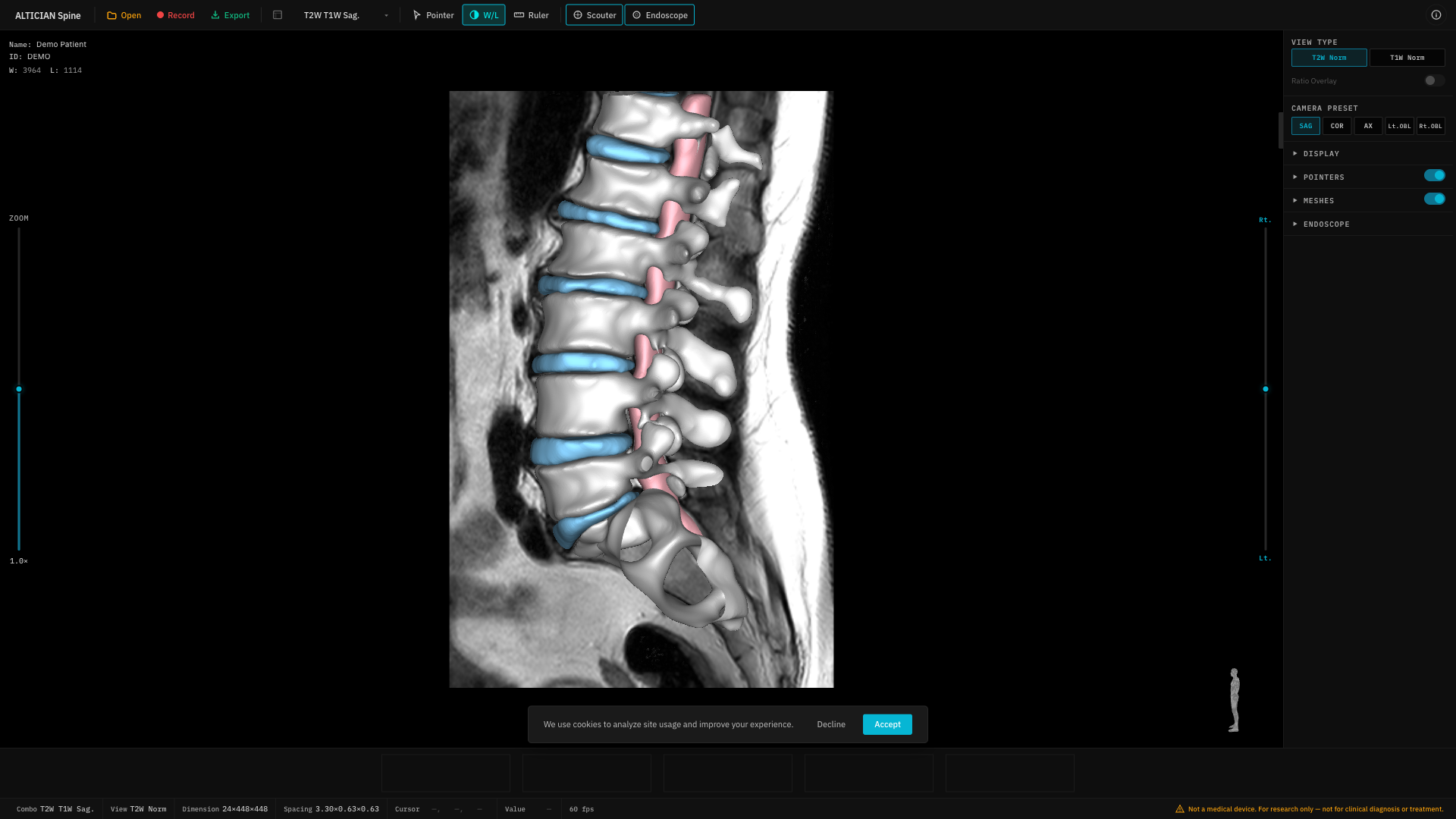
Click the **W/L** button in the toolbar to activate the window/level adjustment mode.
 ## Usage
With the W/L tool active, click and drag on the viewport:
| Drag Direction | Adjustment |
| -------------- | ------------------------- |
| Left / Right | Window width (contrast) |
| Up / Down | Window level (brightness) |
## Reset
Click the **Reset** button to return to the default window/level values.
Activating W/L automatically deactivates **Pointer** and **Ruler** tools. Only one interaction tool can be active at a time.
## Usage
With the W/L tool active, click and drag on the viewport:
| Drag Direction | Adjustment |
| -------------- | ------------------------- |
| Left / Right | Window width (contrast) |
| Up / Down | Window level (brightness) |
## Reset
Click the **Reset** button to return to the default window/level values.
Activating W/L automatically deactivates **Pointer** and **Ruler** tools. Only one interaction tool can be active at a time.