> ## Documentation Index
> Fetch the complete documentation index at: https://docs.spine.altician.com/llms.txt
> Use this file to discover all available pages before exploring further.
# Volume Settings
> Adjust opacity and view type for 3D rendering
## Volume Opacity
The **Opacity** slider (0–100%) controls how transparent the volume rendering appears. Lower values make the volume more see-through, useful for viewing internal structures or overlaid meshes.
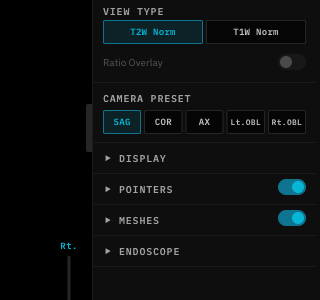 ## View Type
Switch between rendering modes in the **Display** section of the right panel:
| View | Description |
| -------------- | ------------------------------------------- |
| **Raw** | Original MRI intensity values |
| **Normalized** | Histogram-equalized for consistent contrast |
Use **Normalized** view for consistent visualization across different MRI scanners and protocols.
## View Type
Switch between rendering modes in the **Display** section of the right panel:
| View | Description |
| -------------- | ------------------------------------------- |
| **Raw** | Original MRI intensity values |
| **Normalized** | Histogram-equalized for consistent contrast |
Use **Normalized** view for consistent visualization across different MRI scanners and protocols.